Lab: setting up VSCode, SSH, & stearns
Nothing to hand in for this one. Just make sure you do it and get your questions answered if you have any.
This term, you're going to write a web application. Though it is possible to run a web application entirely on your own computer, it is also important to learn how to deploy your application on a server that's accessible from the public internet. In a few weeks, we'll look at how to deploy your application on a Carleton server.
In preparation for that part of the course, you need to set up your computer with Visual Studio Code and an extension that enables VSCode to login to the server using the Secure Shell Protocol (SSH). This short lab is intended to guide you through that process.
Did you already take CS208 Intro to Systems?
If so, you are probably ready to roll. To test it, make sure you can login to your account on stearns.mathcs.carleton.edu.
Install Visual Studio Code
- Get the app. Download and install Visual Studio Code on your working computer.
- Launch the app.
- Install the Remote - SSH extension. In VSCode, on the left edge of the window, click on the Extensions icon. (Alternatively, select the View→Extensions menu item). In the extensions browser, search for "SSH". The top result will probably be "Remote - SSH" by Microsoft. Install it.
Connect to stearns.mathcs.carleton.edu
- Hover your mouse over the little green or blue icon in the bottom left corner of the VSCode window. You should see hover-text that says "Open a Remote Window". Click.
- At the top of VSCode, you'll see a drop-down menu. Click on "Connect to Host..."
Now you'll see a new menu item: "+ Add New SSH Host". Click on it, and fill the resulting text box with:
YOUR_CARLETON_USER_NAME@stearns.mathcs.carleton.eduHit Enter. Assuming this goes fine, you won't have to do "Add New SSH Host" again. Instead, stearns will appear as a choice in the "Connect to Host" menu.
- At this point, what VSCode asks you will depend on context. You may be asked for a password or you may be asked for an "SSH config file" or something along those lines. Follow your nose to get to place where you can enter your Carleton password.
- Once you have connected successfully to stearns, a new window will open. That bottom-left icon will now say "SSH: stearns.mathcs.carleton.edu", which is the signal that you're ready to go.
Set up your working space on stearns
- Open VSCode's file explorer. In the upper left corner, click on the two-pieces-of-paper icon that opens VSCode's file explorer (or select View→Explorer from the menu). Then click on the Open Folder button that appears in the explorer. This will give you many choices, but you should go ahead and click OK for the default option, which should be /Accounts/YOUR_CARLETON_USER_NAME.
- Express your trust if asked. You may see a message asking if you trust the authors of the code you're looking at. Say yes, since you haven't written any code yet, and besides, you're going to be the author.
- Deal with "large workspace" warning.
You may see a warning panel that says "Unable to watch for file changes in this large workspace...".
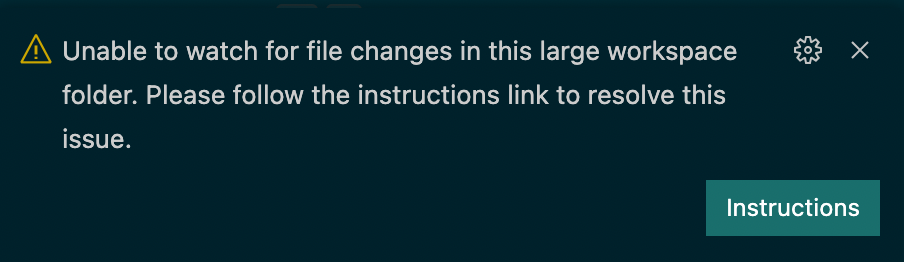
Don't worry about this. This is always ignorable, but in any case, we'll fix this permanently in a minute.
Set up a long-term working directory named cs257. The file explorer at the left side of the VSCode window should now show you the top level of files in your CS/stearns account.
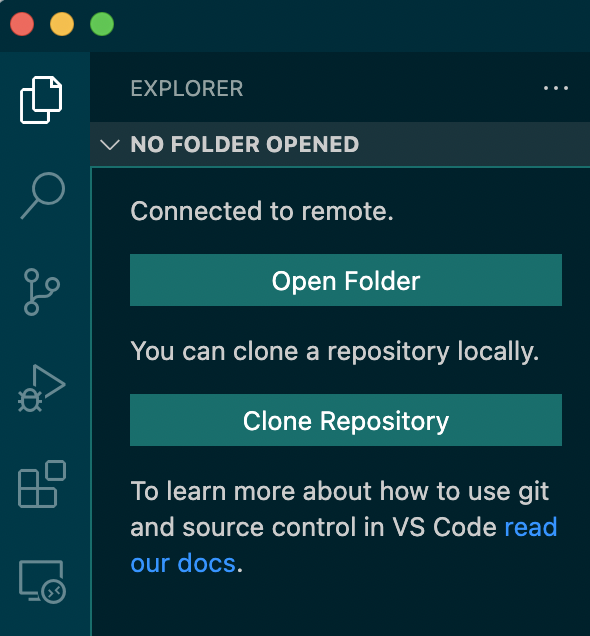
Next, you want to create a folder to keep your stuff in.
- Go up to the VSCode menu bar and select Terminal→New Terminal. A panel with a Unix prompt should appear in the bottom right of your VSCode window. That's a regular old Unix prompt on the stearns server, and you can run any Unix commands you want there.
In that terminal, create a folder named "cs257" where you will do your work for the term.
mkdir cs257If you do "ls" in the terminal after that, you'll see the new folder. You can also look at the VSCode file explorer, and the folder should show up there, too.
Log out of stearns
Click on the bottom-left icon ("SSH: stearns.mathcs.carleton.edu"), scroll to the bottom of the resulting drop-down menu, and select Close Remote Connection.
A typical work session
You're all set up now, and won't need to do most of the steps above anymore. This section describes a typical session with VSCode and stearns.
- Restart, but with the cs257 working directory. Log in to stearns again, but this time when you click on "Open Folder" in the VSCode Explorer, select your cs257 folder instead of your top-level directory. Open a terminal and you're ready to roll!
- Alternative: use the Open Recent menu. Take a look at the File→Open Recent menu for VSCode. Does it show "~/cs257 [SSH:stearns.mathcs.carleton.edu]"? When you're working on your own computer, that is very convenient for future sessions.
- Start a new program. Go to the File→New File menu. Type a hello world program (e.g., hello.py with a single print statement). Save.
- Test your program. In the VSCode terminal, type a suitable command (e.g., "python3 hello.py").
- Pause to reflect. Where is my hello.py file stored? (on the computer named stearns.mathcs.carleton.edu.) Will it still be on stearns after I log out? (Yes.) Is there a copy still on my computer after I log out (Maybe in a cache somewhere, temporarily, but probably not.)
- Download a file from stearns. Copy a file from stearns to your your local computer (e.g., so you can submit homework via Moodle on your web browser) like so. In the VSCode file explorer, right-click on the file you want to download and select Download. As far as I can tell, there's no drag-and-drop way to do this.
- Upload a file to stearns. Open the folder containing your file (e.g., new_hello.c) on your local machine. This will be a Windows Explorer or macOS Finder or Linux folder display. Drag the icon of your file into the VSCode Explorer panel while you're logged in to stearns.
- Always log out when you're done. Don't just close the VSCode window. This helps stearns clean up after your connection, which helps keep stearns usable for you and your classmates.
One caveat about working on the lab computers
When you logout of the computers on 3rd Olin, your changes on that computer are discarded. So, for example, if you did Add New SSH Host on an Olin 310 computer, the resulting menu option would not be there anymore when you returned to that computer later. This is one of many reasons I encourage you to do most of your work on your own computer.